I used Umbraco almost 20 yrs ago and I am trying to get back into it. I can run it in Visual Studio 2026 and when I create a Document Type with Templates it creates the template and has content in it. But when I published it to my local IIS (following the Server Setup instructions) and do the same thing as above, the template does not have any content. When I add something simple as @{ } and click save, the content I just added disappears.
…tells the compiler not to compile Razor views. : Production\local IIS mode expects compiled views, but these settings prevent compilation. The result is that Umbraco can’t find the templates and returns 404 (Page Not Found) errors Umbraco - or in your case, template content appears blank/disappears because the runtime can’t locate or persist the .cshtml files correctly.
The backoffice editor still shows the editor UI (which is why you can type in it), but when you hit save, the file write either fails silently or the runtime just ignores loose .cshtml files entirely because it’s expecting compiled views
Thanks, but none of those are in my .csproj file. Also, I am not having this issue when I run it in Visual Studio but when it runs in IIS as a deployed application.
I do have this line in my .csproj file: <CopyRazorGenerateFilesToPublishDirectorytrue>true</CopyRazorGenerateFilesToPublishDirectorytrue>
Anyway, this sounds more like a permissions problem, Umbraco reads any existing Template files from disk. If the file actually physically exist in your Views directory on the server then they definitely have the wrong permissions. This is even more clear as you say that saving them doesn’t work at all.
Thanks! I did not know today was Umbraco’s birthday.
I initially thought it was a permissions problem too and so I went back and checked all the permissions settings that were mentioned in the Server Setup guide (https://docs.umbraco.com/umbraco-cms/fundamentals/setup/server-setup/permissions). The Views folder (and the other items) has the IIS AppPool for the website, and the permissions are set to Modify. In the View folder I only have the _ViewImports.cshtml file and the Partials folder.
Yeah so sounds like missing files then, your Template files can be found in Views on your local install that does run, you need to make sure that when you do a dotnet publish that they end up in the bundle that needs to be published.
I don’t think there’s anything special you need to do for that, an Umbraco install created from dotnet new umbraco or the templates in Visual Studio should set that all up correctly.
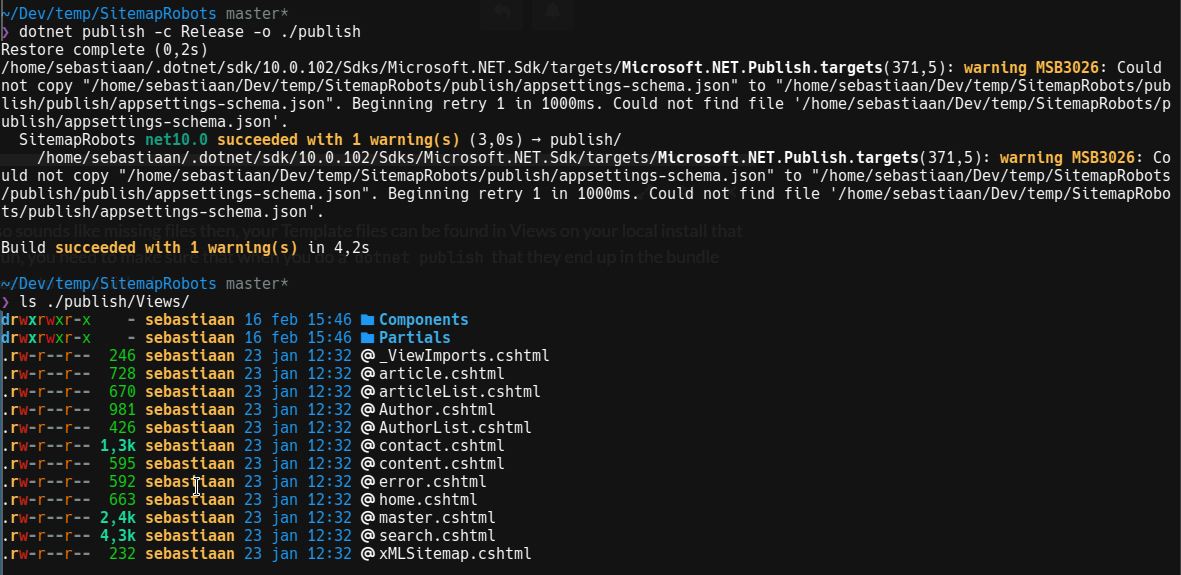
So when I do a publish to a directory, all Views files end up in there:
Not sure where you started but maybe it’s something that’s missing from your .csproj file if your publish doesn’t do that.
If you’d like to compare, this is what that .csproj file looks like:
<Project Sdk="Microsoft.NET.Sdk.Web">
  <PropertyGroup>
    <TargetFramework>net10.0</TargetFramework>
    <ImplicitUsings>enable</ImplicitUsings>
    <Nullable>enable</Nullable>
    <CompressionEnabled>false</CompressionEnabled> <!-- Disable compression. E.g. for umbraco backoffice files. These files should be precompressed by node and not let dotnet handle it -->
  </PropertyGroup>

  <ItemGroup>
    <PackageReference Include="BlendInteractive.Umbraco.RobotsTxt" Version="17.0.0" />
    <PackageReference Include="BlendInteractive.Umbraco.Sitemap" Version="17.0.0" />
    <PackageReference Include="Clean" Version="7.0.5" />
    <PackageReference Include="Umbraco.Cms" Version="17.1.0" />
    <PackageReference Include="Umbraco.Cms.DevelopmentMode.Backoffice" Version="17.1.0" />
  </ItemGroup>

  <ItemGroup>
    <!-- Opt-in to app-local ICU to ensure consistent globalization APIs across different platforms -->
    <PackageReference Include="Microsoft.ICU.ICU4C.Runtime" Version="72.1.0.3" />
    <RuntimeHostConfigurationOption Include="System.Globalization.AppLocalIcu" Value="72.1.0.3" Condition="$(RuntimeIdentifier.StartsWith('linux')) or $(RuntimeIdentifier.StartsWith('win')) or ('$(RuntimeIdentifier)' == '' and !$([MSBuild]::IsOSPlatform('osx')))" />
  </ItemGroup>

  <PropertyGroup>
    <!-- Razor files are needed for the backoffice to work correctly -->
    <CopyRazorGenerateFilesToPublishDirectory>true</CopyRazorGenerateFilesToPublishDirectory>
  </PropertyGroup>

  <PropertyGroup>
    <!-- Remove RazorCompileOnBuild and RazorCompileOnPublish when not using ModelsMode InMemoryAuto -->
    <RazorCompileOnBuild>false</RazorCompileOnBuild>
    <RazorCompileOnPublish>false</RazorCompileOnPublish>
  </PropertyGroup>

</Project>
I deleted the content folder in IIS and published via CLI just like the instructions for hosting on IIS stated. I set the permissions on all the folders and files. I added the environmental variables also, but now I am getting “Configured database is reporting as not being available.” and “Failed to detected SqlServer version.”. I have Sqlite set in the enviromental variables. I have stopped and started the webserver several times. I even added the providername to the enviromental variables in hopes that it would see that is it a Sqlite database. Btw, I created an empty Sqlite database in Data.
Well, I thought I had it. I figured out the database issue and now it loads without error. However, it installed the Starter Kit, which I really did not need. It has an issue too. When I go to the home page from back office I get “Page Not Found”. The log shows “No physical template file was found for template {Template}”. I then went and created a TestPage with template. I open the template expecting to see some Razor code, but it is empty. And when I add @{ } and click Save it too disappears.
I guess I will start over from scratch and try it again.
I noticed your .csproj property looks slightly malformed: <CopyRazorGenerateFilesToPublishDirectorytrue>true</CopyRazorGenerateFilesToPublishDirectorytrue>
Should it be: <CopyRazorGenerateFilesToPublishDirectory>true</CopyRazorGenerateFilesToPublishDirectory> ?
When I copied it here (unfamiliar about the code wrapper) I tried to get it to paste t it only pasted ‘true’. When I figured out the code wrapper I didn’t notice the extra text.
I am on a Windows 10 stand-alone workstation with IIS and Sqlite installed.
I created the web site as per instructions on the Hosting Umbraco in IIS web page.
Had to add ProviderName__umbracoDbDSN:Micorsoft.Data.Sqlite as it kept thinking I was using MS SQL.
In Visual Studio I created an Umbraco Project.
I added the host name to the hosts file in Windows/System32/drivers/etc.
I had to include the media folder in the project (not sure why it is not already included).
I used powershell (in admin) in the project folder to publish via CLI (dotnet publish -o ../UmbracoWeb -f net10.0). It also installed the Clean Starter Kit.
I created an umbraco folder with a DATA folder so I could create a Sqlite database in it.
I set the security permissions to the folders listed on the File and Folder Permissions web page.
When I go to the templates folder and look at the Home Template it is empty and editing it does not work.
Where? On both
Document Type: Home Page? No, it is called Home (alias: home) and it has three tabs (Content, Footer, SEO).
Template named HomePage? No, it is called Home.
Is it linked? No, the Home document type is linked to the template named Home.
That was it. Not sure as to why they did not get published (via CLI). I copied them from Visual Studio and now I can see content in each of the Templates. Now all I need to do is see why I am getting a Page Not Found error when I go straight to the web site and when I click the ‘/’ in the Links section on Info page.
Found the problem. Needed to remove the following lines from .csproj: <RazorCompileOnBuild>false</RazorCompileOnBuild> <RazorCompileOnPublish>false</RazorCompileOnPublish>
I also had to add <Folder Include=”Views\” /> to .csproj.
Now when I publish via CLI the Views folder has content in it and the Page Not Found error is gone.