It is safe to delete the cache folder using Azure Storage Explorer as it can get quite large over time, I have done this before on Umbraco Cloud sites and never had an issue.
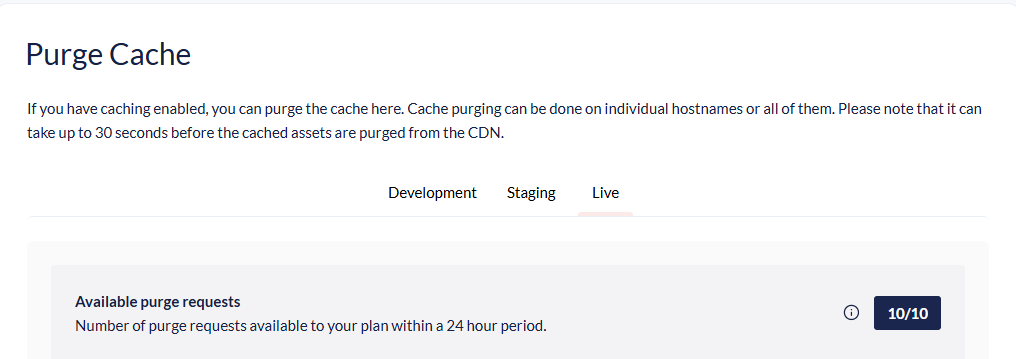
If you also purge the CDN cache, it will re-fetch and re-process every image you display which could slow page speed times down initially whilst images are regenerated and cached. It wouldn’t hurt to do this but you could leave it unless you feel it is also necessary.
Not sure if this is possible as it’s Umbraco cloud..
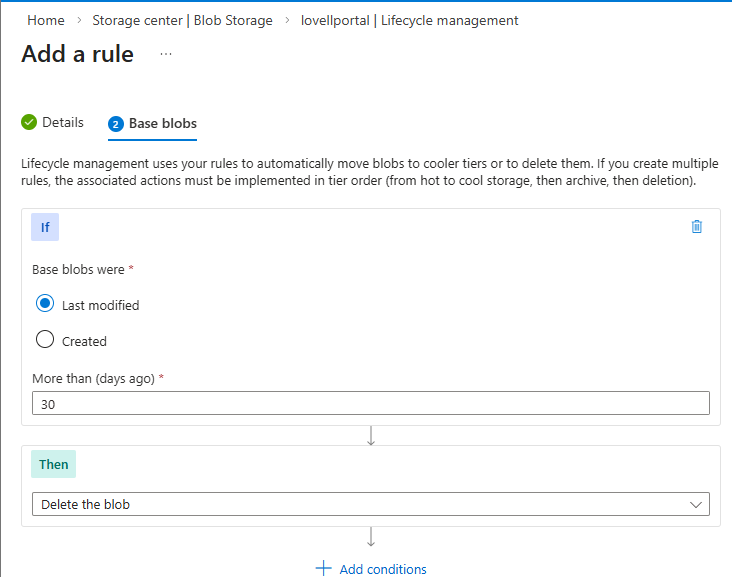
But you can do some maintenance on the cache folder by adding a Data Management LifeCycle rule to the blob storage.. (a filter can limit to cache only)
Might also be a lastAccessed that you can add that might be better for these unused cache files which are morelikely to be the ones you want.
However, in Azure Blob Storage (2026), there is a specific feature called Access Time Tracking. It is not enabled by default because it adds a tiny transaction cost, but it is exactly what you need to solve the “Kosher vs. Orphan” problem.
How to find the “Last Accessed” option
If you don’t see it in your Lifecycle Management rules right now, it’s because the tracking is likely turned off at the Storage Account level.
Go to your Azure Storage Account.
On the left menu, under Data Management, select Lifecycle Management.
Look for a checkbox or a tab that says “Enable access tracking”.
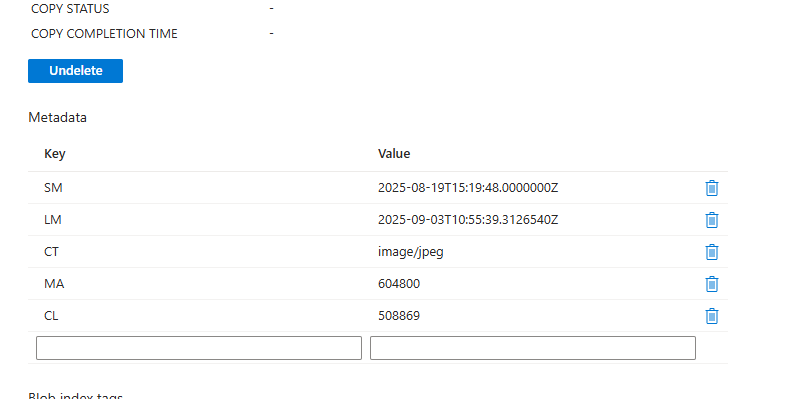
Once checked and saved, a new property called LastAccessTime will be recorded for every blob (it updates at most once every 24 hours to keep costs low).
Setting up the “Smart” Cleanup Rule
Once tracking is on, you can go to Add a Rule and you will see a new dropdown in the Actions tab:
Blob type: Base blobs
Subtype: Current version
Condition:Days after last access
Value: 30 (or 60)
Action: Delete
Why this is the “Gold Standard” for ImageSharp
This configuration is the perfect balance between your surgical plan and the “sledgehammer”:
Protects “Kosher” Files: If an image is on your homepage and gets 1,000 views a day, its LastAccessTime is always “Today.” It will never be deleted.
Kills “Orphans”: If you delete a media item in Umbraco, no one can ever request that URL again. The cached file will sit untouched. After 30 days of zero views, Azure will see it hasn’t been “Accessed” and delete it automatically.
Zero Maintenance: You don’t have to write a single line of C# or maintain an Examine index to find crops.
A quick cost note
Azure charges for “Access Tracking” as an “Other Transaction.” For a typical Umbraco site, this cost is negligible (pennies per month), but it is significantly cheaper than the developer time required to build and debug a custom surgical cleanup handler.
More of a thought exercise on the Umbraco Side of the fence than a recommendation
.. a surgical strike on MediaDeletedNotification (or could be MediaEmptiedRecycleBinNotification) … use examine to find where media existed, get it’s cropurls from local/global crops. get the hash used for the cache filename and try and delete it… with the caveat that manually set crops in code will be missed..
AI says…
using Examine;
using SixLabors.ImageSharp.Web.Caching;
using SixLabors.ImageSharp.Web.Commands;
using Umbraco.Cms.Core;
using Umbraco.Cms.Core.Events;
using Umbraco.Cms.Core.IO;
using Umbraco.Cms.Core.Models;
using Umbraco.Cms.Core.Models.PublishedContent;
using Umbraco.Cms.Core.Notifications;
using Umbraco.Cms.Core.Web;
using Umbraco.Extensions;

namespace MyProject.Handlers;

public class MediaSecurityCleanupHandler : INotificationHandler<MediaDeletedNotification>
{
    private readonly IExamineManager _examineManager;
    private readonly IUmbracoContextFactory _umbracoContextFactory;
    private readonly MediaFileManager _mediaFileManager;
    private readonly ICacheKey _cacheKeyGenerator;
    private readonly ICacheHash _cacheHash;

    public MediaSecurityCleanupHandler(
        IExamineManager examineManager,
        IUmbracoContextFactory umbracoContextFactory,
        MediaFileManager mediaFileManager,
        ICacheKey cacheKeyGenerator,
        ICacheHash cacheHash)
    {
        _examineManager = examineManager;
        _umbracoContextFactory = umbracoContextFactory;
        _mediaFileManager = mediaFileManager;
        _cacheKeyGenerator = cacheKeyGenerator;
        _cacheHash = cacheHash;
    }

    public void Handle(MediaDeletedNotification notification)
    {
        using var contextReference = _umbracoContextFactory.EnsureUmbracoContext();
        var snapshot = contextReference.UmbracoContext.PublishedSnapshot;

        foreach (var media in notification.DeletedEntities)
        {
            var udi = media.GetUdi().ToString();

            if (!_examineManager.TryGetIndex(Constants.UmbracoIndexes.ExternalIndexName, out var index)) continue;

            // Find every content node using this image - could be tailored to known properties?
            var results = index.Searcher.CreateQuery("content")
                .NativeQuery($"*:*{udi}*")
                .Execute();

            foreach (var result in results)
            {
                var content = snapshot.Content.GetById(int.Parse(result.Id));
                if (content == null) continue;

                var picker = content.Value<MediaWithCrops>("mediaPickerAlias");
                if (picker == null || picker.Content.Key != media.Key) continue;

                // 1. Delete Local Crops
                if (picker.LocalCrops?.Crops != null)
                {
                    foreach (var crop in picker.LocalCrops.Crops)
                    {
                        var cropUrl = picker.GetCropUrl(crop.Alias);
                        DeleteImageSharpCacheFile(cropUrl);
                    }
                }
            }

            // 2. Delete the original path (un-cropped cached version)
            var mediaPath = media.GetValue<string>(Constants.Conventions.Media.File);
            if (!string.IsNullOrEmpty(mediaPath))
            {
                DeleteImageSharpCacheFile(mediaPath);
            }
        }
    }

    private void DeleteImageSharpCacheFile(string url)
    {
        if (string.IsNullOrEmpty(url)) return;

        // Parse commands from URL
        var parts = url.Split('?');
        var query = parts.Length > 1 ? parts[1] : string.Empty;
        var commands = new CommandCollection();
        var dict = Microsoft.AspNetCore.WebUtilities.QueryHelpers.ParseQuery(query);
        foreach (var kvp in dict) commands.Add(kvp.Key, kvp.Value.ToString());

        // Generate the Hash (Filename)
        // ImageSharp uses a 12-char hash by default in Umbraco
        string key = _cacheKeyGenerator.Create(null, commands);
        string hashName = _cacheHash.Create(key, 12);

        // Construct the path relative to the root of the Media FileSystem
        // Based on your setup: no nesting, just the /cache/ folder
        var cacheFilePath = $"cache/{hashName}";

        if (_mediaFileManager.FileSystem.FileExists(cacheFilePath))
        {
            _mediaFileManager.FileSystem.DeleteFile(cacheFilePath);
        }
    }
}
public class MediaSecurityCleanupHandlerComposer : IComposer
{
    public void Compose(IUmbracoBuilder builder)
    {
        builder.AddNotificationHandler<MediaDeletedNotification, MediaSecurityCleanupHandler >();
    }
}
Using an Azure Function (Timer Trigger) against the Meta might be much more robust “Background Worker” than trying to run this inside Umbraco’s process.
or…
Instead of one /cache/ folder, you configure ImageSharp to save to /cache/2026-03/.
Next month, you update your appsettings.json to /cache/2026-04/.
You then simply Delete the entire 2026-03 folder in one single command after a couple of days overlap.
This is 1,000x faster and cheaper than checking metadata on individual files.