I am using Cultiv.Hangfire for my background jobs in Umbraco 17 and its working as expected. I need to customize my dashboard tab and title text. Also need to remove or hide the ‘Back to site‘ and footer options from dashboard. How to do that?


That’s not possible out of the box, but they can be overridden with various back office customisations.
I asked AI and it came back with the following:
Three separate mechanisms here, since each lives in a different place.
1. Hangfire title + “Back to site” link
Cultiv.Hangfire wires the dashboard with hardcoded DashboardOptions { IgnoreAntiforgeryToken = true } via an UmbracoPipelineFilter. Run a composer after HangfireComposer, remove its filter, and re-map with your own options:
[ComposeAfter(typeof(HangfireComposer))]
public class CustomHangfireDashboardComposer : IComposer
{
    public void Compose(IUmbracoBuilder builder)
    {
        builder.Services.PostConfigure<UmbracoPipelineOptions>(options =>
        {
            var existing = options.PipelineFilters
                .FirstOrDefault(f => f.Name == Cultiv.Hangfire.Constants.System.HangfireDashboard);
            if (existing != null)
            {
                options.PipelineFilters.Remove(existing);
            }

            options.AddFilter(new UmbracoPipelineFilter("CustomHangfireDashboard")
            {
                Endpoints = app => app.UseEndpoints(endpoints =>
                {
                    endpoints.MapHangfireDashboardWithAuthorizationPolicy(
                        pattern: Cultiv.Hangfire.Constants.System.Endpoint,
                        options: new DashboardOptions
                        {
                            DashboardTitle = "My Background Jobs",
                            AppPath = null,                  // hides "Back to site"
                            IgnoreAntiforgeryToken = true,   // keep this
                            DisplayStorageConnectionString = false,
                        },
                        authorizationPolicyName: AuthorizationPolicies.SectionAccessSettings);
                })
            });
        });
    }
}
AppPath = null is the documented way to hide the Back-to-site link.
2. Umbraco backoffice tab/section label
That’s the menu label, registered through Cultiv.Hangfire’s shipped umbraco-package.json. Override it with your own localisation extension — peek inside _content/Cultiv.Hangfire/ (or the package source on GitHub) to find the exact keys (something like section_hangfire / dashboardTabs_hangfire), then in App_Plugins/HangfireOverrides/umbraco-package.json:
{
  "name": "Hangfire Label Overrides",
  "extensions": [{
    "type": "localization",
    "alias": "HangfireOverrides.En",
    "name": "Hangfire Labels EN",
    "weight": 1000,
    "meta": { "culture": "en" },
    "js": "/App_Plugins/HangfireOverrides/lang/en.js"
  }]
}
The higher weight wins.
3. Hide the footer
No DashboardOptions flag exists for this — the footer is in Hangfire’s LayoutPage. Easiest is to append CSS to Hangfire’s existing CSS route from within the composer above:
DashboardRoutes.Routes.Append("/css[0-9]+", new CombinedResourceDispatcher(
    "text/css",
    typeof(DashboardRoutes).Assembly,
    GetType().Assembly,
    "YourNamespace.hangfire-overrides.css"));
Embedded resource hangfire-overrides.css:
.navbar-fixed-bottom { display: none !important; }
body { padding-bottom: 0 !important; }
Keep the [ComposeAfter(typeof(HangfireComposer))] discipline so your overrides land after the package has finished wiring up.
Unless @sebastiaan has any other ideas?
I’ve not tested any of the above so you would need to try and see if they work.
Justin
I’d rather just hide the button as it does nothing really useful from an iframe inside the backoffice. Just forget that it exists! 
Hi @JafferHussain ,
Try this code. I have tested on Umbraco 17 project:
CustomHangfireDashboardComposer:
using Cultiv.Hangfire;
using Hangfire;
using Hangfire.Dashboard;
using System.Reflection;
using Umbraco.Cms.Core.Composing;
using Umbraco.Cms.Web.Common.ApplicationBuilder;
using Umbraco.Cms.Web.Common.Authorization;

namespace MyUmbracoProjectTest1.Composers
{

    [ComposeAfter(typeof(Cultiv.Hangfire.HangfireComposer))]
    public class CustomHangfireDashboardComposer : IComposer
    {
        public void Compose(IUmbracoBuilder builder)
        {
            builder.Services.PostConfigure<UmbracoPipelineOptions>(options =>
            {
                var existing = options.PipelineFilters
                    .FirstOrDefault(x => x.Name == Constants.CultivHangfire.HangfireDashboard);

                if (existing != null)
                {
                    options.PipelineFilters.Remove(existing);
                }

                options.AddFilter(new UmbracoPipelineFilter(Constants.CultivHangfire.HangfireDashboard + ".Custom")
                {
                    Endpoints = app => app.UseEndpoints(endpoints =>
                    {
                        endpoints.MapHangfireDashboard(
                            pattern: Constants.CultivHangfire.Endpoint,
                            options: new DashboardOptions
                            {
                                DashboardTitle = "Background Jobs",
                                AppPath = null,
                                DisplayStorageConnectionString = false,
                                AsyncAuthorization = new[] { new HangfireCookieAuthorizationFilter() }
                            });
                    })
                });
            });
        }
    }
}
Create this folder structure:
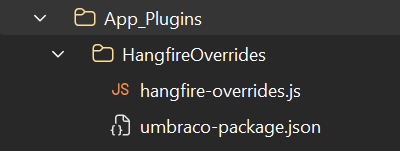
Add the following code on those files:
umbraco-package.json:
{
  "$schema": "../../umbraco-package-schema.json",
  "name": "HangfireOverrides",
  "version": "1.0.0",
  "extensions": [
    {
      "type": "backofficeEntryPoint",
      "alias": "HangfireOverrides.EntryPoint",
      "name": "Hangfire Overrides Entry Point",
      "js": "/App_Plugins/HangfireOverrides/hangfire-overrides.js"
    },
    {
      "type": "section",
      "alias": "HangfireOverrides.Section",
      "name": "Background Jobs",
      "weight": 100,
      "meta": {
        "label": "Background Jobs",
        "pathname": "background-jobs"
      },
      "conditions": [
        {
          "alias": "Cultiv.Hangfire.SectionCondition"
        }
      ]
    },
    {
      "type": "sectionView",
      "alias": "HangfireOverrides.SectionView",
      "name": "Background Jobs Dashboard",
      "js": "/App_Plugins/Cultiv.Hangfire/dashboard-element.js",
      "weight": 100,
      "meta": {
        "label": "Background Jobs",
        "pathname": "background-jobs"
      },
      "conditions": [
        {
          "alias": "Umb.Condition.SectionAlias",
          "match": "HangfireOverrides.Section"
        }
      ]
    },
    {
      "type": "dashboard",
      "alias": "HangfireOverrides.Dashboard",
      "name": "Background Jobs",
      "js": "/App_Plugins/Cultiv.Hangfire/dashboard-element.js",
      "weight": -1,
      "meta": {
        "label": "Background Jobs",
        "pathname": "background-jobs"
      },
      "conditions": [
        {
          "alias": "Umb.Condition.SectionAlias",
          "match": "Umb.Section.Settings"
        },
        {
          "alias": "Cultiv.Hangfire.DashboardCondition"
        }
      ]
    }
  ]
}
hangfire-overrides.js:
export const onInit = (host, extensionRegistry) => {
    extensionRegistry.exclude('Cultiv.Hangfire.Section');
    extensionRegistry.exclude('Cultiv.Hangfire.SectionView');
    extensionRegistry.exclude('Cultiv.Hangfire.Dashboard');
};
Result:
You will have the Background Jobs as tab name and main header and the button won’t be there:

Hope it helps!