Hi @karlmacklin ,
Please try this tool, it provides a custom UFM tag {debug:dump}. When added to a block label, it taps into the Umbraco Context API and logs the live, clean data array directly to the browser console, revealing the exact property aliases available for use.
Follow the steps to create it:
Step 1: Create the Plugin Folder
In your Umbraco project, navigate to the App_Plugins folder and create a new folder called UFMDebugger.
Step 2: Create the JavaScript File
Inside the UFMDebugger folder, create a file named debug-label.component.js and paste in this code. (Note: This is written in Vanilla JS so it does not require a Vite/TypeScript build step).
import { UmbUfmComponentBase } from '@umbraco-cms/backoffice/ufm';
import { UmbElementMixin } from '@umbraco-cms/backoffice/element-api';
import { UMB_BLOCK_ENTRY_CONTEXT } from '@umbraco-cms/backoffice/block';

class UfmBlockDebuggerElement extends UmbElementMixin(HTMLElement) {
    connectedCallback() {
        super.connectedCallback?.();
        this.innerHTML = `<span style="color: blue; font-size: 10px; border: 1px solid blue; padding: 2px;">[Check Console!]</span>`;

        this.consumeContext(UMB_BLOCK_ENTRY_CONTEXT, (context) => {

            // Subscribe to the content values stream
            this.observe(context._contentValueArray, (contentData) => {
                // This will give you the clean, structured array of your properties!
                console.log('✅ CLEAN CONTENT DATA:', contentData);
            });

            // If you also need to see your block settings data:
            this.observe(context._settingsValueArray, (settingsData) => {
                console.log('⚙️ CLEAN SETTINGS DATA:', settingsData);
            });

        });
    }
}

if (!customElements.get('ufm-block-debugger')) {
    customElements.define('ufm-block-debugger', UfmBlockDebuggerElement);
}

export class DebugLabelComponent extends UmbUfmComponentBase {
    render() {
        return `<ufm-block-debugger></ufm-block-debugger>`;
    }
}
export { DebugLabelComponent as api };
Step 3: Create the Manifest File
In the same UFMDebugger folder, create a file named umbraco-package.json and paste in this configuration:
{
  "name": "UFM Component Debugger",
  "version": "1.0.0",
  "extensions": [
    {
      "type": "ufmComponent",
      "alias": "My.UfmComponent.Debug",
      "name": "Debug UFM Component",
      "api": "/App_Plugins/UFMComponent/debug-label.component.js",
      "meta": {
        "alias": "debug"
      }
    }
  ]
}
Step 4: Restart and Clear Caches
Because we added a new package manifest, you need to restart the application (or reload the app domain) so Umbraco registers the new extension. Once the backoffice loads, do a Hard Refresh (Ctrl + F5) in your browser to clear out any old JS bundles.
Step 5: How to Use It
- Go to the Settings section and open the Data Type for your Block List.
- In the configuration for a specific Block, set the Label field to:
{debug:dump} (You can mix it with other text, like My Block - {debug:dump}).
- Open a Content node that uses this Block List.
- Press F12 to open your browser’s Developer Tools and navigate to the Console tab.
- Create a new block or type data into an existing block.
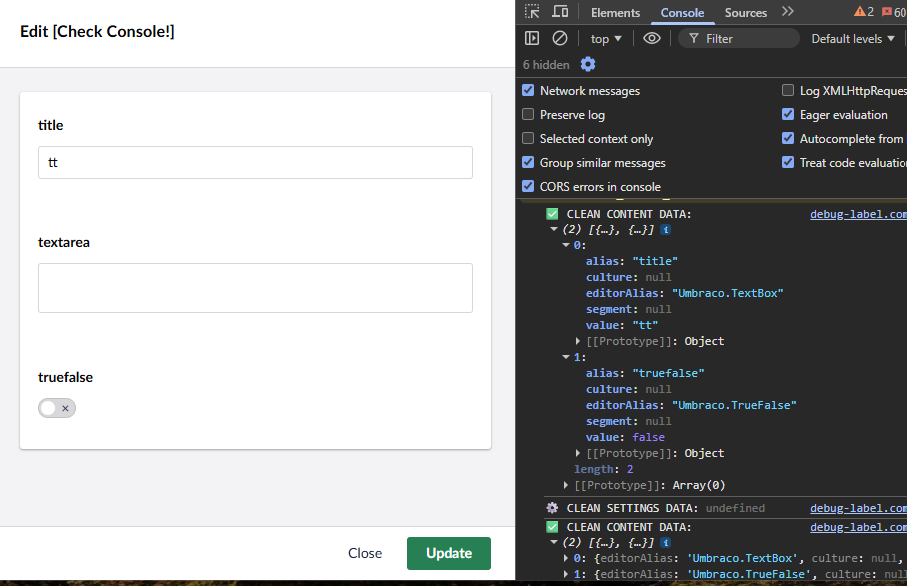
Every time the block data updates, the console will log the ✅ CLEAN CONTENT DATA array, showing you the exact structure and property aliases you can safely use in your {=propertyName} UFM expressions!
Here’s the output I got when tried with a simple setup:
Hope it helps!