I’ve been redoing the website that I maintain from v11 to v18 and I’m at the stage of pushing it to the server for development viewing and client sign off.
First off, the server is Windows 2012, which is old and at EOL. I totally get that and I am prepared to swap this out for a new server if that is the only solution.
Website was developed in Visual Studio Code, runs fine, and publishes correctly from both VS Code and Visual Studio 2026 full version.
All files from the published folder are on the server, appsettings.json and appsettings.Production.json are installed and are correct.
The issue I am having is that the front end just says ‘Page Not Found’ and the error logs say that no template is found for the document.
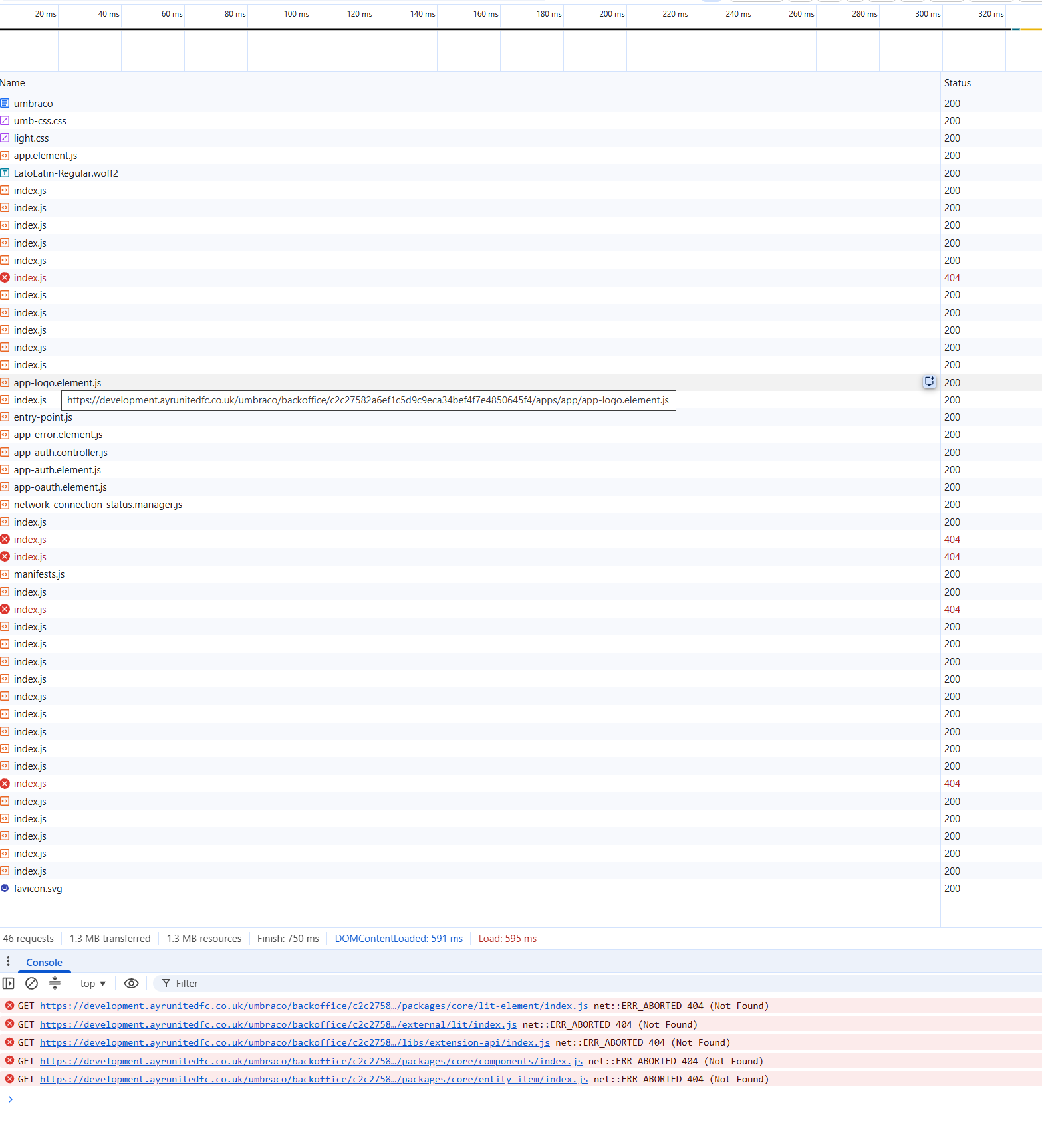
Trying to log in to the backoffice, I just get a blank page and a whole host of 404 errors along the lines of //sitename/umbraco/backoffice/c2c27582a6ef1c5d9c9eca34bef4f7e4850645f4/external/lit/index.js' not found. The Umbraco folders and files are present on the webserver. MIME types are all correct and being recognised.
URL Rewrite module and the web socket module are present. Application Pool is setup correctly.
Looking at the log files (both stdout and Umbraco’s own log files) I can see that the system is spinning up without any errors, connecting to database etc. but it’s just not showing any pages or allowing access to the back office.
If I install Umbraco as a new .NET project with the CLI on the server then it works fine.
What am I doing wrong with this setup? Do I need to to acquire a newer Windows Server or should it run on this 2012 instance? How easy is it to set up a Linux server and host it on that? (I have looked at some posts about doing it using nginx and Kestrel but I don’t currently have a Linux server although I could get a Virtual Image and download it).
Yes, both the hosting bundle and the .NET SDK have been installed and are working as I have been able to create and run a new project on the server in the same directory - the project has since been deleted and it is reverted back to the uploaded files from my own machine.
Looking at the debug console in Chrome, it is only the script files from the importmap area of the page that are not working - {imports ..}, stylesheet files and any linked JavaScript file (e.g. apps/app/app.element.js) are being found and served correctly.
It’s as if there is something not configured that recognises the GUID element of the URL that is being generated for the import map script, but is working for anything that has a HREF attribute.
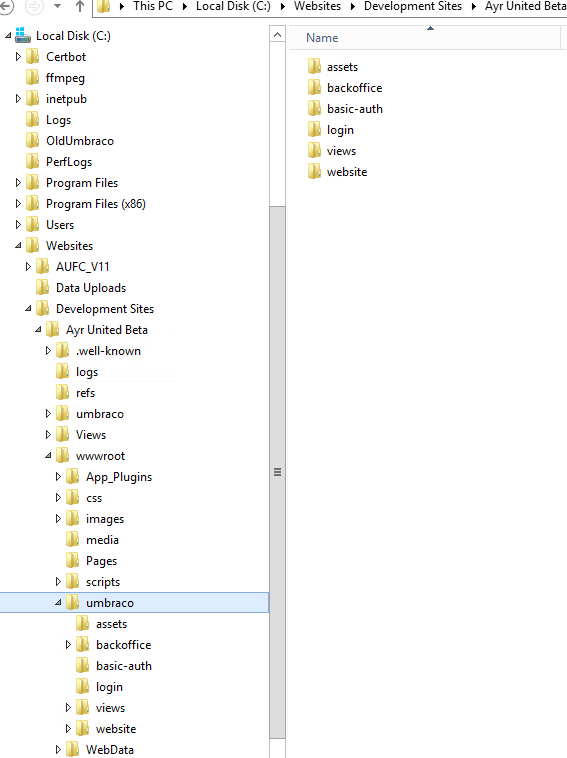
All the files are correctly located in wwwroot/umbraco/backoffice etc, they’re just not being served by IIS for some reason-- probably really stupid (by me) and really simple to solve
If only the import map entries 404 and the href assets load fine, I’d suspect the import map URLs are being generated with the wrong base path rather than IIS not serving the files.
In the Network tab, compare the full request URL of a CSS file that works with one of the failing import map files. Is there a difference in host or path?
Two things to check:
Is the site set up as an application or virtual directory under another IIS site (e.g. server/sitename)? Umbraco doesn’t work well like that, so give it its own site with a host binding.
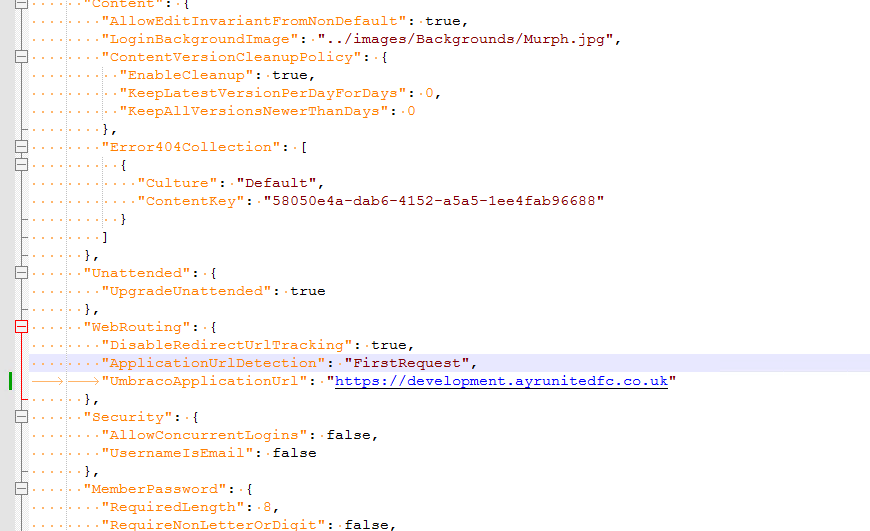
Is UmbracoApplicationUrl set in appsettings.Production.json? If so, make sure it matches the URL you’re browsing to, or remove it.
It is in a sub directory (C:\Websites\Development\AUBeta - but all my sites follow the same structure, so it’s not an application or virtual directory =>
If I remove UmbracoApplicationURL from appsettings (rather than production.json) it errors with 500 and the message that the appUrl needs to be set for production. This URL is currently set as =>
Like I said - it will be something really, really stupid that I’ve missed. It’s just slightly (aka immensity) annoying.
I get that I’m doing a fairly hefty upgrade from v11 to v18 an using what is in effect out of date server and software, so I’m quite ‘happy’ to accept a mea culpa …
Ultimately, you are just updating from an earlier version of .NET core, so it should still work the same was from v11 to v18 in terms of IIS setup. Do you have any custom config in your project web.config that could be interfering?
Did you clear out the v11 files completely before deploying v18? There’s nothing left from v11 that could be interfering is there? Are you able to try setting up a new site with it’s subdomain, app pool and folder to rule things out?
Yeah, the directory was completely cleared out before uploading to the server, but it is possible that there is something way down in an obscure config file or setting that is making the site not behave.
I’ve just got a brand new clean 2025 Windows Server VPS to try out to see if that makes any difference - I’ve got 30 days to cancel the contract and get a full refund, so I’ll see how that goes.
I can then always close off the old server and use the new server if it works - there’s nothing of any importance on the old server in any case so it’s no great loss if it dies. And the newer server is slightly cheaper as well…
Thanks for your help so far - I’ll keep you informed if I get it working.
If a new Windows Server 2025 VPS is an option I would go down that route now - it’s easier now then migrating everything later, especially as Windows Server 2012 is out of support (and most likely the version of SQL Server you are using too).
It does help when setting the permissions on the folders and you’re looking for the user in IIS APPPOOL\ you realize the name you entered has TWO spaces in it and not the ONE that you’re entering in the security dialog box.
Using a different domain name as I currently don’t have access to the clubs domain control panel (I just haven’t logged in for ages and it has forgotten me).
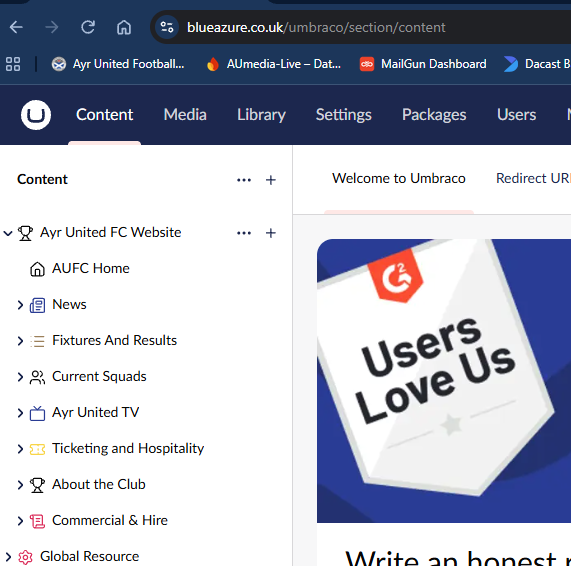
Installed with SQLLite instead of SQL Server and running a USync import from the development server I have …